Raspberry Pi Serial Console
When setting up a new Raspberry Pi, it’s helpful to have console access, which could mean hooking up a screen and keyboard to the pi. Another option is to connect your pi to your computer with a USB cable, and connect to the serial console (similar to connecting via SSH or telnet). You need a special cable, but it saves you from having to keep a monitor and keyboard just for the pi.
The Cable You’ll need a USB-to-serial 3.3V cable. I got mine for $10 from adafruit.com.
The Setup You connect the four leads to the raspberry pi’s GPIO (general purpose I/O) pins, as shown. Red and black are power/ground, and green and white are the transmission lines. You want to avoid connecting two power sources to your raspberry pi. The normal way of powering the pi is with a micro USB port by the SD card. You should leave that disconnected, and just use the 4 leads from the USB-to-serial adapter to power the pi. If you do want to leave the pi powered by the micro USB port (maybe you want to connect to an already-running pi), just don’t connect the red lead from the USB-to-serial cable. Both setups are shown below. After connecting the 4 (or 3) leads to the pi, plug the other (USB) end into your computer.
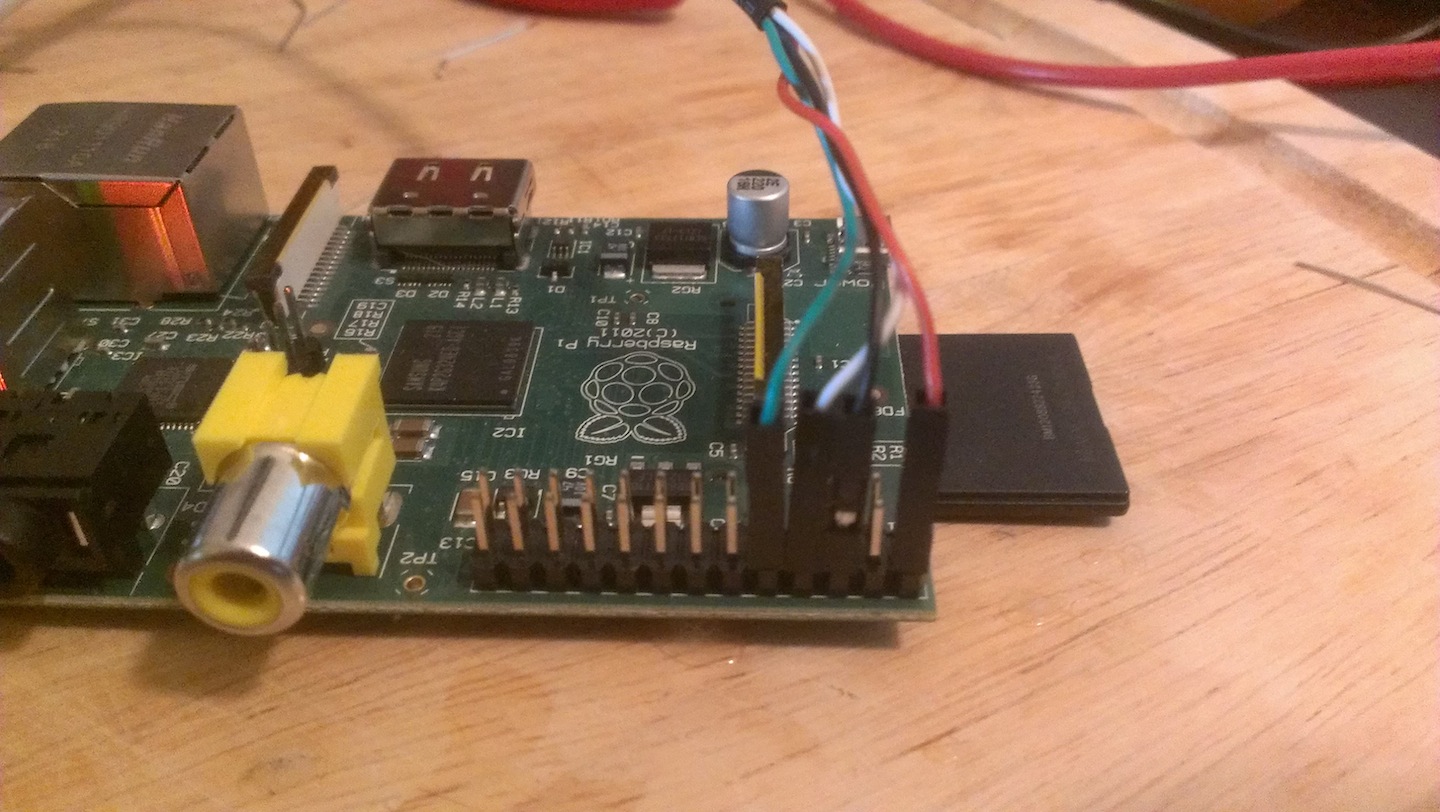
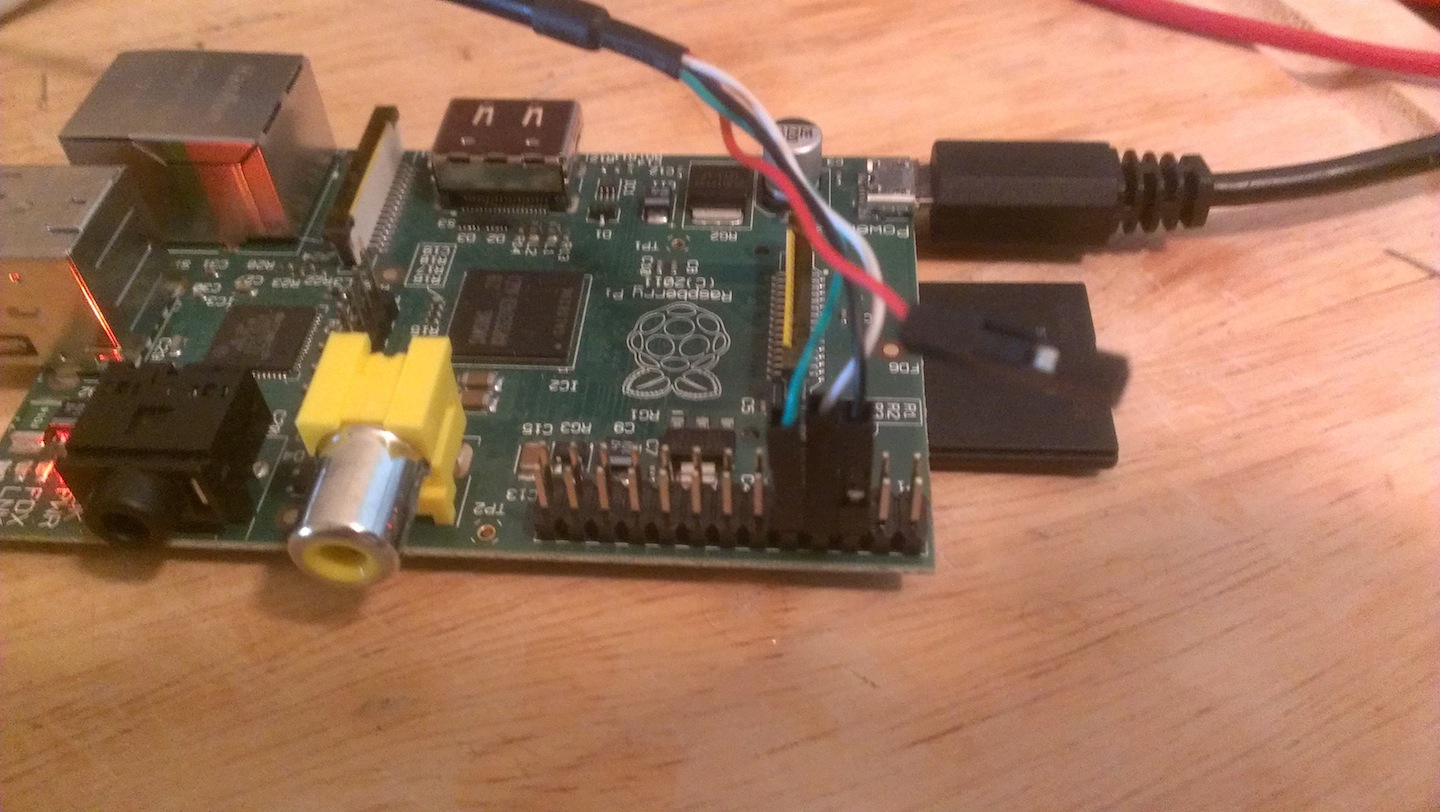
Software On OSX and linux, the pi will show up as a device at something like /dev/cu.PL2303-00001014 (the string after “cu.” will be different). I don’t have a Windows box, but I think it’ll show up as a COM port. To connect (again, from OSX or linux), use the command: ‘screen /dev/cu.PL2303-00001014 115200’ (replacing /dev/cu.PL2303-00001014 with whatever’s appropriate). Hit return/enter a few times, and you should be at a prompt (pi/raspberry is a likely default login/password).
Nested Screen If you run screen (or tmux) as part of your daily workflow, then you’ll find that you cannot get this to work from within an existing screen/tmux session. That’s because nesting screen doesn’t really work (and tmux is a screen work-a-like). Use the ‘screen ’ outside of screen/tmux, and you should be fine.
More information, and Windows Another great tutorial (which covers connecting via a GUI in Windows) is on adafruit.